Popup-Notes
The program allows you to maintain two sets of notes against each card in any particular deck, and a third set of notes for general annotations applicable to any deck.
The first of the deck related sets of notes is for "Little White Book" type information of the kind that might accompany a deck and is generally referred to as your Card Notes or LWB Notes.
The second is for your own personal impressions of each card and is referred to as your Personal Notes.
In practical terms the difference between Card Notes and Personal Notes is that if you decide to share a deck on the Deck Exchange the
Card Notes file will normally by transferred along with the cards, while your Personal Notes are never shared with other users. The third set of notes is referred to as your Universal Notes.
The pop-up notes that appear when you hover your mouse over a card will depend on the currently selected pop-up mode as selected on the Cards Menu or by pressing F8.
You can also use the pop-up mode to turn off pop-up notes altogether. Notes are colour-coded according to which set of notes they represent:
| Card Notes |
| Personal Notes |
| Universal Notes |
Card Notes are held in the file CardData.xml which you will find in the folder that represents the deck in question in your Decks Folder.
(If a deck does not come supplied with notes, a blank file is generated
automatically by the program). Personal notes are held in a similar file called PersonalCardData.xml. Universal notes are contained in the file UniversalCardData.xml
which sits directly in the Decks Folder.
If you have dealt out a Spread, the popup window also shows the notes for each card's position in the spread, so the notes that appear will be a combination of the notes for the position of the card in the spread, plus the notes for the card itself,
it that order. Whether the card notes are the general, personal or universal ones will depend on the current mode of operation.
When a Reading is laid out, it is the notes associated with the particular reading that appear in the pop-up windows. In this case the pop-up windows
are green to denote that the program is displaying a reading that you have saved previously
This can be summarized graphically as follows
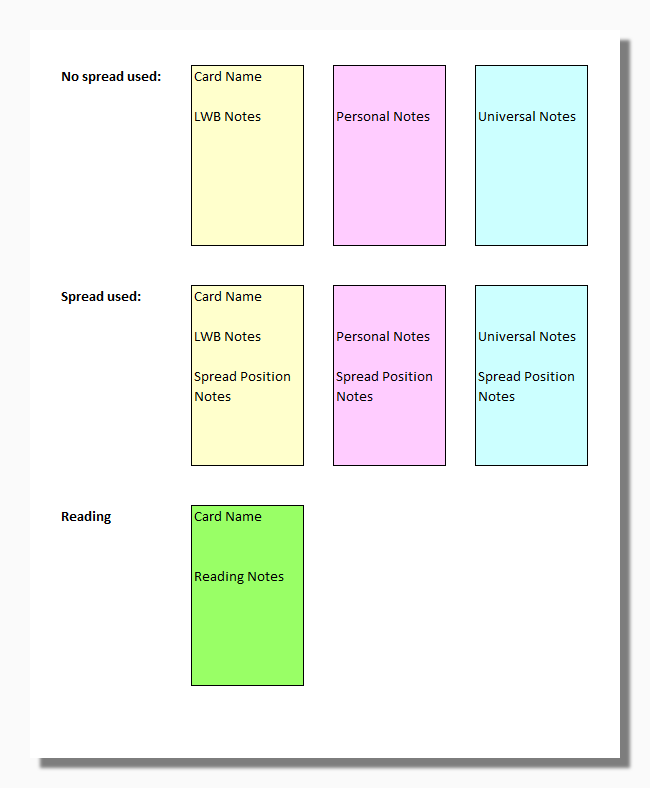
A number of other options exist for how and when pop-up notes are displayed. These can be found on the Cards tab of the Options form.
Tip: If the notes are too long for the pop-up window you can scroll them into view with the scroll wheel on your mouse or the
up and down arrows on your keyboard.
Tip: To make a quick edit or alteration to your card notes press the Return/Enter key on your keyboard.
For more help on editing your card notes see the section on Editing Card Notes